
Creating an Azure Maps AutoSuggest for Routing
|
Apr 21 |
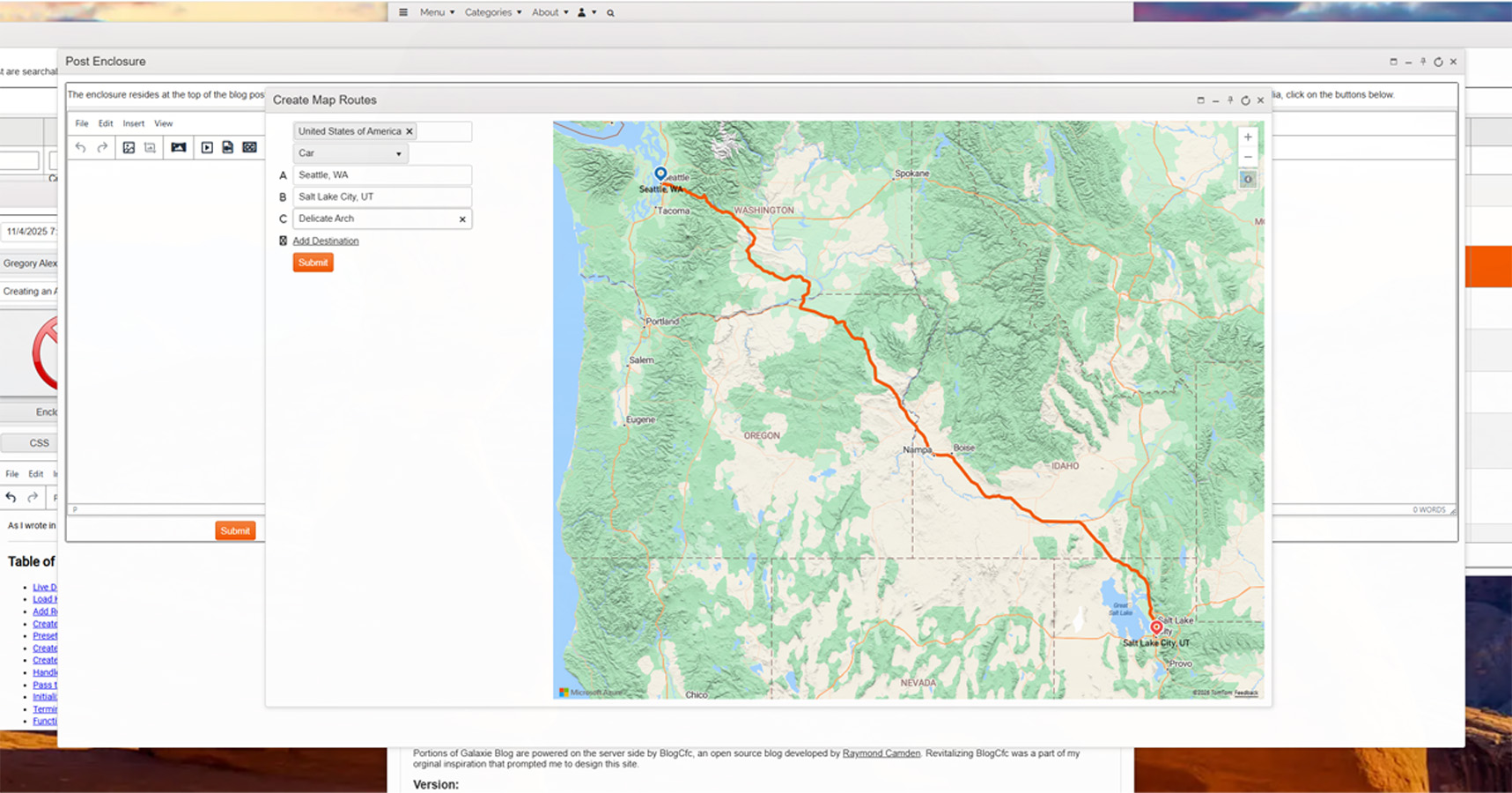
As I wrote in a previous article, one of the main difficulties with Azure Maps is the lack of integrated UI controls for entering data. In this article, I will show you how to implement an autocomplete UI widget with Kendo Core UI that lets users easily create an Azure Maps route between two or more locations. All of the required libraries, including jQuery and Kendo Core are free and open source, so you can freely use this aproach in your own web applications. I use a version of this code in my Galaxie Blog distribution in production environments.
Table of Contents
- Live Demonstration and Code
- Load Kendo UI and Set the CSS Properties
- Add References to the Azure Maps Control
- Create a jQuery onReady Function
- Preset the Azure Maps Fuzzy Service URL and Azure Maps Routing URL
- Create the Kendo UI Country Dropdown
- Create the Kendo UI Datasource
- Handle Azure Maps' Complex JSON Using the Parse Response Function
- Pass the Selected Values to the Azure Maps Backend
- Initialize the Kendo UI Auto-Suggest Widgets
- Terminate the jQuery on-ready statement
- Function to Create a Static Azure Map When the User Makes Their First Selection
- Render the Map Route When the User Makes More Than One Selection
- JavaScript Functions to Display New Destinations
- HTML
Live Demonstration and Code
Load Kendo UI and Set the CSS Properties
In the page head section, I initialize Kendo UI and jQuery, and set the map's display properties using CSS. This process is nearly identical to the process that I used to create static maps with a Kendo UI autocomplete.
<!DOCTYPE html>
<html lang="en">
<head>
    <head>
    <title></title>
	<!-- Load custom stylesheets -->
	<link type="text/css" rel="stylesheet" href="/blog/common/libs/jQuery/jQueryNotify/ui.notify.css" />
	<link type="text/css" rel="stylesheet" href="/blog/common/libs/jQuery/jQueryNotify/notify.css" />
	<!-- Kendo CSS -->
	<link rel="stylesheet" href="/blog/common/libs/kendo/styles/kendo.common.min.css" />
	<link rel="stylesheet" href="/blog/common/libs/kendo/styles/kendo.default.min.css" />
	<!-- Extended API CSS -->
	<link  rel="stylesheet" href="/blog/common/libs/kendoUiExtended/styles/default.kendo.ext.css">

	<!-- Load jQuery -->
	<script
  		src="https://code.jquery.com/jquery-3.5.1.min.js"
  		integrity="sha256-9/aliU8dGd2tb6OSsuzixeV4y/faTqgFtohetphbbj0="
  		crossorigin="anonymous">
	<!-- And load jQuery UI via CDN -->
	<script src="https://ajax.googleapis.com/ajax/libs/jqueryui/1/jquery-ui.js" type="text/javascript">
	<!-- Load Kendo script -->
	<script src="/blog/common/libs/kendoCore/js/kendo.ui.core.min.js" type="text/javascript">
	<!-- Load the notify script -->
	<script src="/blog/common/libs/jQuery/jQueryNotify/src/jquery.notify.js" type="text/javascript">
	<!-- And load the Kendo extended API script -->
	<script src="/blog/common/libs/kendoUiExtended/js/kendo.web.ext.js">
	<!-- FontAwesome 6.1 -->
	<link  rel="stylesheet" href="https://use.fontawesome.com/releases/v6.1.0/css/all.css">

	<style>
		.sidePanel {
			width: 350px;
			height: 100%;
			float: left;
			margin-right: 10px;
		}

		#myMap {
			position: relative;
			width: calc(100% - 360px);
			min-width:290px;
			height: 600px;
			float: left;
		}

	</style>
</head>
Add References to the Azure Maps Control
The Azure Maps control is used to process a query using a search term and return the results using JSON. We also must load the Azure Maps helper script.
<!-- Add references to the Azure Maps Map control JavaScript and CSS files. -->
<link rel="stylesheet" href="https://atlas.microsoft.com/sdk/javascript/mapcontrol/3/atlas.min.css" type="text/css">
<script src="https://atlas.microsoft.com/sdk/javascript/mapcontrol/3/atlas.min.js">
<!-- Add a reference to the Azure Maps Rest Helper JavaScript file. This script contains the processRequest function that is used to create the map route -->
<script src="https://samples.azuremaps.com/lib/azure-maps/azure-maps-helper.min.js">
Create a jQuery onReady Function
As with many Kendo UI widgets, the bulk of our logic must be wrapped in a jQuery document-ready function.
$(document).ready(function(){Preset the Azure Maps Fuzzy Service URL and Azure Maps Routing URL
These references can be used in the AJAX read declaration; however, I prefer to set them as JavaScript variables, which makes it easier to update the service endpoints when Microsoft updates them.
// This is used to populate the autosuggest as well as render the map when the first input is used. Fuzzy searches include POI and addresses.
var fuzzyGeoServiceUrl = "https://atlas.microsoft.com/search/fuzzy/json?typeahead=true&api-version=1.0&language=en-US&lon=0&lat=0&view=Auto";

// URL for the Azure Maps Route API. Used when two or more locations are selected to render the route.
var routeGeoServiceUrl = 'https://atlas.microsoft.com/route/directions/json?api-version=1.0language=en-US&query={query}&routeRepresentation=polyline&travelMode=car&view=Auto';
Create the Kendo UI Country Dropdown
Although using a country dropdown with Azure Maps is not absolutely necessary, it is good practice to use one as it will limit your traffic between the client and the Azure Maps backend.
// create DropDownList from select HTML element
$("#countrySelector").kendoMultiSelect({
	filter: "contains",
	placeholder: "Please select countries...",
	downArrow: true
});

$("#travelMode").kendoDropDownList();
Create the Kendo UI Datasource
The Kendo UI Datasource is used to pass the country and location to the Azure Maps fuzzy search endpoint. Change the EnterYourAzureMapsSubscriptionKey string and use your own Azure Maps Subscription Key!
The success callback uses the parseResults function which will flatton the returned JSON and we will use the location and GeoCoordinates values to populate the autoSuggest widget. We wil cover this further below.
// Kendo UI Datasources
function getLocationDataSource(locationIndex){
	return new kendo.data.DataSource({
		transport: {
			read: function(options) {

				// Perform a custom the AJAX request to the Azure Maps API
				$.ajax({
					url: fuzzyGeoServiceUrl, // the URL of the API endpoint.
					type: "get",// Azure maps require the get method and posts will fail with a 505 eror
					data: {
						// Pass the key. The dash will cause an error if the arg is not enclosed in a string
						'subscription-key': 'EnterYourAzureMapsSubscriptionKey',
						 // Pass the value typed in to the form for the query parameter
						query: function(){
							return $("#location" + locationIndex).data("kendoAutoComplete").value();
						},//..query
						// Pass the selected country
						countrySet: function(){
							return $("#countrySelector").data("kendoMultiSelect").value();
						}
					},//..data
					dataType: "json", // Use json if the template is on the current server. If not, use jsonp for cross domain reads.
					success: function(result) {
						// If the request is successful, call the options.success callback
						options.success( parseResponse(result) );
					},
					error: function(error) {
						// If the request fails, call the options.error callback
						options.error(error);
					}
				});//ajax

			},//read
			schema: {
				model: {
					fields: {
						freeformAddress: {type: "string" },
						lat: {type: "string" },
						lon: {type: "string" },
						topLeftPointLon: {type: "string" },
						topLeftPointLat: {type: "string" },
						btmRightPointLon: {type: "string" },
						btmRightPointLat: {type: "string" }
					}//fields
				}//model
			}//schema
		},//transport
		cache: false,
		serverFiltering: true // without this argument, the autocomplete will not work and only fire the ajax request once
	});//..return new kendo.data.DataSource({
}//..function getLocationDataSource(locationIndex){
Handle Azure Maps' Complex JSON Using the Parse Response Function
The following JavaScript function is used to flatten the JSON returned by the Azure Maps API. Unfortunately, the JSON returned by the Azure Maps API is complex and has nested structures, and we must implement additional logic to flatten it for Kendo UI. The following script takes the JSON returned from the Azure Maps service via the datasource and flattens it for use by the Kendo AutoComplete widget.
I have covered this technique in a separate article on using Kendo with complex JSON.
// The parseResponse manipulates the returned JSON to make it compatible with the Kendo UI autosuggest widget.
function parseResponse(obj){

	// Instantiate the json object
	jsonObj = [];

	// Loop through the items in the object
	for (var i = 0; i < obj.results.length; i++) {
		if (obj.results[i]) {
			// Get the data from the object
			var results = obj.results[i];// Results is an array in the json returned from the server

			// The POI is only available if the type is POI
			var poi = '';
			var label = results.address.freeformAddress;
			if (results.type === 'POI'){
				poi = results.poi.name;
				// Now that we have the POI when it exists, set the label that we will use. We will use the POI Name if it exists, otherwise we will use the freeFormAddress
				label = poi;
			}

			// Create the struct. We need the latitute, longitude and the POI if it exists.
			let jsonItems = {
				freeformAddress: results.address.freeformAddress,
				poi: poi,
				label: label,
				lat: results.position.lat,
				lon: results.position.lon,
				topLeftPointLon: results.viewport.topLeftPoint.lon,
				topLeftPointLat: results.viewport.topLeftPoint.lat,
				btmRightPointLon: results.viewport.btmRightPoint.lon,
				btmRightPointLat: results.viewport.btmRightPoint.lat
			};
			// Push the items into the new json object
			jsonObj.push(jsonItems);
		}
	}//..for
	// Write the object out for testing
	console.log('jsonObj:' + jsonObj);
	// And return it...
	return jsonObj;
}//..function parseResponse(obj){
Pass the Selected Values to the Azure Maps Backend
This helper function passes the values to the Azure Maps backend when the user makes a selection in using the Kendo UI autosuggest. The location index is contains the index of the autosuggest. The first auto-suggest widget has an index of 1, the second has an index of 2, and so-forth. This is used as we will create a static map of the location when the user makes their first selection. Only when the second selection is made will we render the map route as a route needs one or more locations.
// saveSelection(event, index)
function saveSelection(e,locationIndex){

	// Since the Kendo DataSource is dynamic, we can't read the data from this DataSource, however, we can get the data from the jsonObj that we created using the selected index from the Kendo autosuggest widget.
	var selectedLocation = jsonObj[e.item.index()];

	// console.log('e.item.index():' + e.item.index());
	// Write the selected index to the console for debugging
	console.log('selectedLocation' + selectedLocation);

	// Save the values in a hidden form. The forms change according to the location index that is passed in
	$("#selectedFreeformAddress" + locationIndex).val(selectedLocation.freeformAddress);
	$("#selectedLat" + locationIndex).val(selectedLocation.lat);
	$("#selectedLon" + locationIndex).val(selectedLocation.lon);

	// Camera positions (only used for static maps)
	if (locationIndex == 1){
		$("#selectedTopLeftPointLon").val(selectedLocation.topLeftPointLon);
		$("#selectedTopLeftPointLat").val(selectedLocation.topLeftPointLat);
		$("#selectedBtmRightPointLon").val(selectedLocation.btmRightPointLon);
		$("#selectedBtmRightPointLat").val(selectedLocation.btmRightPointLat);
	}//if (locationIndex == 1){

	// Render the static map once the first location is filled out, or render the map route when multiple locations are selected.
	if (locationIndex == 1){
		// Render the static map. This function does not need the locationIndex as it only uses the first index to render the static map
		getStaticMap();
	} else {
		setTimeout(function() {
			renderMapRoute(locationIndex);
		}, 250);
	}
}//..function saveSelection(e,locationIndex){
Initialize the Kendo UI Auto-Suggest Widgets
The following code initializes the autosuggest widgets. Every widget will use the label value to indicate the location. We are calling the saveSelection JavaScript function, along with the index, when one of the dropdown values has been selected. I personally use server side code to render these autosuggests within a loop, however, I have inclused all of the 16 autosuggest declarations in this example for clarity.
// Kendo UI autocomplete widgets
$("#location1").kendoAutoComplete({
	minLength: 3,
	dataSource: getLocationDataSource(1), // We are binding the widget to a dynamic datasource
	dataTextField: "label", // The widget is bound to the "label"
	select: function(e) {
		saveSelection(e,"1");//aveSelection(event,step). There are a dozen different steps, 1 through 16
	}
});//..$("#location1").kendoAutoComplete({

$("#location2").kendoAutoComplete({
	minLength: 3,
	dataSource: getLocationDataSource(2), // We are binding the widget to a dynamic datasource
	dataTextField: "label", // The widget is bound to the "label"
	select: function(e) {
		saveSelection(e,"2");//saveSelection(event,step).
	}
});//..$("#location2").kendoAutoComplete({

$("#location3").kendoAutoComplete({
	minLength: 3,
	dataSource: getLocationDataSource(3), // We are binding the widget to a dynamic datasource
	dataTextField: "label", // The widget is bound to the "label"
	select: function(e) {
		saveSelection(e,"3");//saveSelection(event,step).
	}
});//..$("#location3").kendoAutoComplete({

$("#location4").kendoAutoComplete({
	minLength: 3,
	dataSource: getLocationDataSource(4), // We are binding the widget to a dynamic datasource
	dataTextField: "label", // The widget is bound to the "label"
	select: function(e) {
		saveSelection(e,"4");//saveSelection(event,step).
	}
});//..$("#location4").kendoAutoComplete({

$("#location5").kendoAutoComplete({
	minLength: 3,
	dataSource: getLocationDataSource(5), // We are binding the widget to a dynamic datasource
	dataTextField: "label", // The widget is bound to the "label"
	select: function(e) {
		saveSelection(e,"5");//saveSelection(event,step).
	}
});//..$("#location5").kendoAutoComplete({

$("#location6").kendoAutoComplete({
	minLength: 3,
	dataSource: getLocationDataSource(6), // We are binding the widget to a dynamic datasource
	dataTextField: "label", // The widget is bound to the "label"
	select: function(e) {
		saveSelection(e,"6");//saveSelection(event,step).
	}
});//..$("#location6").kendoAutoComplete({

$("#location7").kendoAutoComplete({
	minLength: 3,
	dataSource: getLocationDataSource(7), // We are binding the widget to a dynamic datasource
	dataTextField: "label", // The widget is bound to the "label"
	select: function(e) {
		saveSelection(e,"7");//saveSelection(event,step).
	}
});//..$("#location7").kendoAutoComplete({

$("#location8").kendoAutoComplete({
	minLength: 3,
	dataSource: getLocationDataSource(8), // We are binding the widget to a dynamic datasource
	dataTextField: "label", // The widget is bound to the "label"
	select: function(e) {
		saveSelection(e,"8");//saveSelection(event,step).
	}
});//..$("#location8").kendoAutoComplete({

$("#location9").kendoAutoComplete({
	minLength: 3,
	dataSource: getLocationDataSource(9), // We are binding the widget to a dynamic datasource
	dataTextField: "label", // The widget is bound to the "label"
	select: function(e) {
		saveSelection(e,"9");//saveSelection(event,step).
	}
});//..$("#location9").kendoAutoComplete({

$("#location10").kendoAutoComplete({
	minLength: 3,
	dataSource: getLocationDataSource(10), // We are binding the widget to a dynamic datasource
	dataTextField: "label", // The widget is bound to the "label"
	select: function(e) {
		saveSelection(e,"10");//saveSelection(event,step).
	}
});//..$("#location10").kendoAutoComplete({

$("#location11").kendoAutoComplete({
	minLength: 3,
	dataSource: getLocationDataSource(11), // We are binding the widget to a dynamic datasource
	dataTextField: "label", // The widget is bound to the "label"
	select: function(e) {
		saveSelection(e,"11");//saveSelection(event,step).
	}
});//..$("#location11").kendoAutoComplete({

$("#location12").kendoAutoComplete({
	minLength: 3,
	dataSource: getLocationDataSource(12), // We are binding the widget to a dynamic datasource
	dataTextField: "label", // The widget is bound to the "label"
	select: function(e) {
		saveSelection(e,"12");//saveSelection(event,step).
	}
});//..$("#location12").kendoAutoComplete({

$("#location13").kendoAutoComplete({
	minLength: 3,
	dataSource: getLocationDataSource(13), // We are binding the widget to a dynamic datasource
	dataTextField: "label", // The widget is bound to the "label"
	select: function(e) {
		saveSelection(e,"13");//saveSelection(event,step).
	}
});//..$("#location13").kendoAutoComplete({

$("#location14").kendoAutoComplete({
	minLength: 3,
	dataSource: getLocationDataSource(14), // We are binding the widget to a dynamic datasource
	dataTextField: "label", // The widget is bound to the "label"
	select: function(e) {
		saveSelection(e,"14");//saveSelection(event,step).
	}
});//..$("#location14").kendoAutoComplete({

$("#location15").kendoAutoComplete({
	minLength: 3,
	dataSource: getLocationDataSource(15), // We are binding the widget to a dynamic datasource
	dataTextField: "label", // The widget is bound to the "label"
	select: function(e) {
		saveSelection(e,"15");//saveSelection(event,step).
	}
});//..$("#location15").kendoAutoComplete({

$("#location16").kendoAutoComplete({
	minLength: 3,
	dataSource: getLocationDataSource(16), // We are binding the widget to a dynamic datasource
	dataTextField: "label", // The widget is bound to the "label"
	select: function(e) {
		saveSelection(e,"16");//saveSelection(event,step).
	}
});//..$("#location16").kendoAutoComplete({
Terminate the jQuery on-ready statement
Here I terminate the jQuery on-ready block
});Function to Create a Static Azure Map When the User Makes Their First Selection
After the user selects the first location, we will use this function to create a static map. A static map is required when only one location is selected, as a route must have two or more locations. The logic for this function is covered in detail in my Creating Static Maps with Azure Maps article.
// This function is used to render a static map once the first form is filled out and a location is selected.
function getStaticMap() {

	// Get the necessary values from the hidden form values. Here, we are only using the selected values for the first location.
	var freeformAddress = $("#selectedFreeformAddress1").val();
	var lat = $("#selectedLat1").val();
	var lon = $("#selectedLon1").val();

	// Camera positions. These are only used when rendering the static map once the first location is selected.
	var topLeftPointLat = $("#selectedTopLeftPointLat").val();
	var topLeftPointLon = $("#selectedTopLeftPointLon").val();
	var btmRightPointLat = $("#selectedBtmRightPointLat").val();
	var btmRightPointLon = $("#selectedBtmRightPointLon").val();

	// Initialize a map instance.
	map = new atlas.Map('myMap', {
		view: 'Auto',
		authOptions: {
			 authType: 'subscriptionKey',
			 subscriptionKey: ' EnterYourAzureMapsSubscriptionKey'
		 }
	});

	// Wait until the map resources are ready.
	map.events.add('ready', function () {
		// Create a data source to store the data in.
		datasource = new atlas.source.DataSource();
		// Add the datasource
		map.sources.add(datasource);
		// Add a layer for rendering point data.
		map.layers.add(new atlas.layer.SymbolLayer(datasource));
		// Remove any previous added data from the map.
		datasource.clear();
		// Create a point feature to mark the selected location.
		datasource.add(new atlas.data.Feature(new atlas.data.Point([lon,lat])));
		//datasource.add(new atlas.data.Feature(new atlas.data.Point([lon,lat]), ui.item));

		// Zoom the map into the selected location.
		map.setCamera({
			bounds: [
				topLeftPointLon, btmRightPointLat,
				btmRightPointLon, topLeftPointLat
			],
			padding: 0
		});//map.setCamera

		// Add the controls
		// Create a zoom control.
		map.controls.add(new atlas.control.ZoomControl({
			zoomDelta: parseFloat(1),
			style: "light"
		}), {
		  position: 'top-right'
		});

		// Create the style control
		map.controls.add(new atlas.control.StyleControl({
		  mapStyles: ['road', 'road_shaded_relief', 'satellite', 'satellite_road_labels'],
		  layout: 'icons'
		}), {
		  position: 'top-right'
		});

	})//..map.events

}//..getStaticMap
Render the Map Route When the User Makes More Than One Selection
Important Note: If you're using the following code, you must replace all $ stings with a dollar sign ($). Using a dollar sign causes errors rendering this page. This is a common error when printing dollar signs with Azure Maps. This is not necessary if you copy the code by clicking on the full code button at the top of the page.
This function uses the JSON returned by the Directions API to render an Azure Maps route. The logic is nearly identical to my Creating Map Routes with Azure Maps article.
function renderMapRoute(locationIndex) {
// URL for the Azure Maps Route API.
var routeUrl = 'https://{azMapsDomain}/route/directions/json?api-version=1.0&query={query}&routeRepresentation=polyline&travelMode={travelMode}&view=Auto';
// Get the travel mode (car, bus, etc.)
var travelMode = $("#travelMode").val();
// Get the necessary values from the hidden form v}:alues. Here, we are only using the selected values for the first location.
// Get the starting point
var address1 = $("#selectedFreeformAddress1").val();
var lat1 = $("#selectedLat1").val();
var lon1 = $("#selectedLon1").val();
// And the destination
// Get the necessary values from the hidden form values. Here, we are only using the selected values for the first location.
var address2 = $("#selectedFreeformAddress2").val();
var lat2 = $("#selectedLat2").val();
var lon2 = $("#selectedLon2").val();
// Important note: in this example we must cast the longitude and latitude values, stored in the form, to a number otherwise the setCamera function will not work!
var geoCoordinates1 = [Number(lon1),Number(lat1)];
var geoCoordinates2 = [Number(lon2),Number(lat2)];
try {
// Set the geocoordinates to set the map boundary.
geoCoordinatePositionArray = [geoCoordinates1, geoCoordinates2];
} catch (e) {
// Code to handle the error (e.g., logging, user feedback)
console.error("An error occurred:", e.message);
}
// Initialize a map instance.
map = new atlas.Map('myMap', {
center: geoCoordinates1,
zoom: 12,
view: 'Auto',
style: 'road_shaded_relief',// Note: satellite_with_roads does not work on it's own when using directions
authOptions: {
authType: 'subscriptionKey',
subscriptionKey: 'EnterYourAzureMapsSubscriptionKey'
}
});
// Wait until the map resources are ready.
map.events.add('ready', function () {
// Create a data source and add it to the map.
datasource = new atlas.source.DataSource();
map.sources.add(datasource);
// Add a layer for rendering the route line and have it render under the map labels.
map.layers.add(new atlas.layer.LineLayer(datasource, null, {
strokeColor: '#f35800',
strokeWidth: 5,
lineJoin: 'round',
lineCap: 'round'
}), 'labels');
// Add a layer for rendering point data.
map.layers.add(new atlas.layer.SymbolLayer(datasource, null, {
iconOptions: {
image: ['get', 'iconImage'],
allowOverlap: true,
ignorePlacement: true
},
textOptions: {
textField: ['get', 'title'],
offset: [0, 1]
},
filter: ['any', ['==', ['geometry-type'], 'Point'], ['==', ['geometry-type'], 'MultiPoint']] //Only render Point or MultiPoints in this layer.
}));
// Create the GeoJSON objects which represent the start and end point of the route
var waypoint1 = new atlas.data.Feature(new atlas.data.Point(geoCoordinates1), {
title: address1,
iconImage: 'pin-blue'
});
// Set the marker color to the 2nd waypoint. I want the default color to be blue and the final destination to be red
if (locationIndex == 2){
var thisMarkerColor = 'pin-red';
} else {
var thisMarkerColor = 'pin-blue';
}
// Create the GeoJSON objects which represent the start and end point of the route
var waypoint2 = new atlas.data.Feature(new atlas.data.Point(geoCoordinates2), {
title: address2,
iconImage: thisMarkerColor// The following svg based markers can be used: https://learn.microsoft.com/en-us/azure/azure-maps/how-to-use-image-templates-web-sdk
});
// Note the GeoJSON objects have been switched from Bing Maps to Azure Maps. Now we are using longitude first then latitude instead of the other way around.
// Add the origin and destination coordinates to the data source.
datasource.add([waypoint1, waypoint2]);
var geoCoordinateStr = '${geoCoordinates1[1]},${geoCoordinates1[0]}:${geoCoordinates2[1]},${geoCoordinates2[0]}';
// Loop through the hidden form fields and create the geocoordinates that we will use to render the route
for (var i = 3; i <= locationIndex; i++) {
var thisAddress = $("#selectedFreeformAddress" + i).val();
var thisLat = $("#selectedLat" + i).val();
var thisLon = $("#selectedLon" + i).val();
var thisGeoCoordinates = [Number(thisLon),Number(thisLat)];
// Append the geocoordinates to the geoCoordinatePositionArray. This array is used to calculate the map boundaries
geoCoordinatePositionArray.push(thisGeoCoordinates);
// console.log('thisLat:' + thisLat);
// console.log('thisLon:' + thisLon);
// console.log('thisGeoCoordinates:' + thisGeoCoordinates);
// Set the marker color to this waypoint. I want the default color to be blue and the final destination to be red
if (i == locationIndex){
var thisMarkerColor = 'pin-red';
} else {
var thisMarkerColor = 'pin-blue';
}
// Create the GeoJSON objects which represent the start and end point of the route
var thisWayPoint = new atlas.data.Feature(new atlas.data.Point(thisGeoCoordinates), {
title: thisAddress,
iconImage: thisMarkerColor
});
// Add the new waypoint
datasource.add([thisWayPoint]);
// Append the new latitude and latitude to the geoCoordinateStr. Note: this is in reverse order of the waypoint!
geoCoordinateStr = geoCoordinateStr.concat(':${thisLat},${thisLon}');
// geoCoordinatePositionStr = geoCoordinates1, geoCoordinates2;
// console.log('geoCoordinateStr:' + geoCoordinateStr);
}//for
// Fit the map window to the bounding box defined by the start and end positions.
map.setCamera({
bounds: atlas.data.BoundingBox.fromPositions(geoCoordinatePositionArray),
// Padding will essentially zoom out a bit. The default is 50, I am using 100 as I want the destinations on the map to be clearly shown
padding: 100
});
// Create the route request with the query being the start and end point in the format 'startLongitude,startLatitude:endLongitude,endLatitude'. The replace function is a JavaScript function that uses backticks and the dollar signs indicate the expression.
var routeRequestURL = routeUrl
.replace('{query}', geoCoordinateStr);
// Set the travel mode
var routeRequestURL = routeRequestURL
.replace('{travelMode}', '${travelMode}');
// Process the request and render the route result on the map.
processRequest(routeRequestURL).then(directions => {
// Extract the first route from the directions.
const route = directions.routes[0];
// Combine all leg coordinates into a single array.
const routeCoordinates = route.legs.flatMap(leg => leg.points.map(point => [point.longitude, point.latitude]));
// Create a LineString from the route path points.
const routeLine = new atlas.data.LineString(routeCoordinates);
// Add it to the data source.
datasource.add(routeLine);
});//..processRequest(routeRequestURL).then(directions => {
// Add the controls
// Create a zoom control.
map.controls.add(new atlas.control.ZoomControl({
zoomDelta: parseFloat(1),
style: "light"
}), {
position: 'top-right'
});
// Create the style control
map.controls.add(new atlas.control.StyleControl({
mapStyles: ['road', 'road_shaded_relief', 'satellite', 'satellite_road_labels'],
layout: 'icons'
}), {
position: 'top-right'
});
});//..map.events.add('ready', function () {
}//..function renderMapRoute(locationIndex) {JavaScript Functions to Display New Destinations
The following functions are used to create new rows and autosuggest widgets when the user clicks on the new destination button at the bottom of the page.
// functions to determine what fields should be shown and hidden.
// Function to show a menu
function showLayer(id) {
	var e = document.getElementById(id);
	e.style.display = "table-row";
}

// Function to hide a menu
function hideLayer(id) {
	try{
		var e = document.getElementById(id);
		e.style.display = 'none';
	} catch(e){
		error = id + 'is not defined';
	}
}

// function to toggle the layers on and off.
function toggleLayers(id) {
   var e = document.getElementById(id);
   if(e.style.display == 'table-row')
	  e.style.display = 'none';
   else
	  e.style.display = 'table-row';
}

// New functions to hide and show a div using jquery. 7/27/2017
function showDiv(divId) {
   $("#"+divId).show();
}

function hideDiv(divId) {
   $("#"+divId).hide();
}
HTML
The HTML should be pretty straightforward. We call the getStaticMap function to initialize the Azure Map when the page loads and break the page into two sections. The destination auto-suggest widgets on the left, and the Azure Map to the right of the page. The hidden form fields are used to save the users selections. We also have a country selector to limit the query by the selected country and allow the user to select the mode of travel, i.e. car, bike, bus, motorclye, or pedestrian.
Every autosuggest widget is held in a row with a label showing a capital letter, A indicates the first destination, B the second, and so-forth. Each row has a plus icon that is used to create new destinations, and finally, we the myMap div is used to render the map.
<!-- Load the map using the body -->
<body onload="getStaticMap()">

	<div class="sidePanel">

		<table cellpadding="0" cellspacing="0" class="k-content" style="width:320px;">
			<!-- Hidden inputs to store user selections -->

			<input type="hidden" name="selectedFreeformAddress1" id="selectedFreeformAddress1" value="" />
			<!-- Latitute -->
			<input type="hidden" name="selectedLat1" id="selectedLat1" value="" />
			<!-- Longitude -->
			<input type="hidden" name="selectedLon1" id="selectedLon1" value="" />

			<!-- Freeform address 2 -->
			<input type="hidden" name="selectedFreeformAddress2" id="selectedFreeformAddress2" value="" />
			<!-- Latitute 2 -->
			<input type="hidden" name="selectedLat2" id="selectedLat2" value="" />
			<!-- Longitude 2 -->
			<input type="hidden" name="selectedLon2" id="selectedLon2" value="" />
			<!-- Optional layers -->

			<!-- Freeform address 3 -->
			<input type="hidden" name="selectedFreeformAddress3" id="selectedFreeformAddress3" value="" />
			<!-- Latitute 2 -->
			<input type="hidden" name="selectedLat3" id="selectedLat3" value="" />
			<!-- Longitude 2 -->
			<input type="hidden" name="selectedLon3" id="selectedLon3" value="" />

			<!-- Freeform address 4 -->
			<input type="hidden" name="selectedFreeformAddress4" id="selectedFreeformAddress4" value="" />
			<!-- Latitute 2 -->
			<input type="hidden" name="selectedLat4" id="selectedLat4" value="" />
			<!-- Longitude 2 -->
			<input type="hidden" name="selectedLon4" id="selectedLon4" value="" />

			<!-- Freeform address 5 -->
			<input type="hidden" name="selectedFreeformAddress5" id="selectedFreeformAddress5" value="" />
			<!-- Latitute 2 -->
			<input type="hidden" name="selectedLat5" id="selectedLat5" value="" />
			<!-- Longitude 2 -->
			<input type="hidden" name="selectedLon5" id="selectedLon5" value="" />

			<!-- Freeform address 6 -->
			<input type="hidden" name="selectedFreeformAddress6" id="selectedFreeformAddress6" value="" />
			<!-- Latitute 2 -->
			<input type="hidden" name="selectedLat6" id="selectedLat6" value="" />
			<!-- Longitude 2 -->
			<input type="hidden" name="selectedLon6" id="selectedLon6" value="" />

			<!-- Freeform address 7 -->
			<input type="hidden" name="selectedFreeformAddress7" id="selectedFreeformAddress7" value="" />
			<!-- Latitute 2 -->
			<input type="hidden" name="selectedLat7" id="selectedLat7" value="" />
			<!-- Longitude 2 -->
			<input type="hidden" name="selectedLon7" id="selectedLon7" value="" />

			<!-- Freeform address 8 -->
			<input type="hidden" name="selectedFreeformAddress8" id="selectedFreeformAddress8" value="" />
			<!-- Latitute 2 -->
			<input type="hidden" name="selectedLat8" id="selectedLat8" value="" />
			<!-- Longitude 2 -->
			<input type="hidden" name="selectedLon8" id="selectedLon8" value="" />

			<!-- Freeform address 9 -->
			<input type="hidden" name="selectedFreeformAddress9" id="selectedFreeformAddress9" value="" />
			<!-- Latitute 2 -->
			<input type="hidden" name="selectedLat9" id="selectedLat9" value="" />
			<!-- Longitude 2 -->
			<input type="hidden" name="selectedLon9" id="selectedLon9" value="" />

			<!-- Freeform address 10 -->
			<input type="hidden" name="selectedFreeformAddress10" id="selectedFreeformAddress10" value="" />
			<!-- Latitute 2 -->
			<input type="hidden" name="selectedLat10" id="selectedLat10" value="" />
			<!-- Longitude 2 -->
			<input type="hidden" name="selectedLon10" id="selectedLon10" value="" />

			<!-- Freeform address 11 -->
			<input type="hidden" name="selectedFreeformAddress11" id="selectedFreeformAddress11" value="" />
			<!-- Latitute 2 -->
			<input type="hidden" name="selectedLat11" id="selectedLat11" value="" />
			<!-- Longitude 2 -->
			<input type="hidden" name="selectedLon11" id="selectedLon11" value="" />

			<!-- Freeform address 12 -->
			<input type="hidden" name="selectedFreeformAddress12" id="selectedFreeformAddress12" value="" />
			<!-- Latitute 2 -->
			<input type="hidden" name="selectedLat12" id="selectedLat12" value="" />
			<!-- Longitude 2 -->
			<input type="hidden" name="selectedLon12" id="selectedLon12" value="" />

			<!-- Freeform address 13 -->
			<input type="hidden" name="selectedFreeformAddress13" id="selectedFreeformAddress13" value="" />
			<!-- Latitute 2 -->
			<input type="hidden" name="selectedLat13" id="selectedLat13" value="" />
			<!-- Longitude 2 -->
			<input type="hidden" name="selectedLon13" id="selectedLon13" value="" />

			<!-- Freeform address 14 -->
			<input type="hidden" name="selectedFreeformAddress14" id="selectedFreeformAddress14" value="" />
			<!-- Latitute 2 -->
			<input type="hidden" name="selectedLat14" id="selectedLat14" value="" />
			<!-- Longitude 2 -->
			<input type="hidden" name="selectedLon14" id="selectedLon14" value="" />

			<!-- Freeform address 15 -->
			<input type="hidden" name="selectedFreeformAddress15" id="selectedFreeformAddress15" value="" />
			<!-- Latitute 2 -->
			<input type="hidden" name="selectedLat15" id="selectedLat15" value="" />
			<!-- Longitude 2 -->
			<input type="hidden" name="selectedLon15" id="selectedLon15" value="" />

			<!-- Freeform address 16 -->
			<input type="hidden" name="selectedFreeformAddress16" id="selectedFreeformAddress16" value="" />
			<!-- Latitute 2 -->
			<input type="hidden" name="selectedLat16" id="selectedLat16" value="" />
			<!-- Longitude 2 -->
			<input type="hidden" name="selectedLon16" id="selectedLon16" value="" />

			<!-- The camera positions only need to be saved for the first selected location. The mapRouting function does not use them. -->
			<!-- Camera Top Left Latitude -->
			<input type="hidden" name="selectedTopLeftPointLat" id="selectedTopLeftPointLat" value="" />
			<!-- Camera Top Left Longitude -->
			<input type="hidden" name="selectedTopLeftPointLon" id="selectedTopLeftPointLon" value="" />
			<!-- Camera Bottom Right Latitude -->
			<input type="hidden" name="selectedBtmRightPointLat" id="selectedBtmRightPointLat" value="" />
			<!-- Camera Bottom Right Longitude -->
			<input type="hidden" name="selectedBtmRightPointLon" id="selectedBtmRightPointLon" value="" />

			<tr style="height: 35px;">
				<td width="10%" align="right">
				</td>
				<td width="*">
					<select id="countrySelector" name="countrySelector">
						<option value="AF">Afghanistan</option>
						<option value="AX">Ã…land Islands</option>
						<option value="AL">Albania</option>
						<option value="DZ">Algeria</option>
						<option value="AS">American Samoa</option>
						<option value="AD">Andorra</option>
						<option value="AO">Angola</option>
						<option value="AI">Anguilla</option>
						<option value="AQ">Antarctica</option>
						<option value="AG">Antigua and Barbuda</option>
						<option value="AR">Argentina</option>
						<option value="AM">Armenia</option>
						<option value="AW">Aruba</option>
						<option value="AU">Australia</option>
						<option value="AT">Austria</option>
						<option value="AZ">Azerbaijan</option>
						<option value="BS">Bahamas</option>
						<option value="BH">Bahrain</option>
						<option value="BD">Bangladesh</option>
						<option value="BB">Barbados</option>
						<option value="BY">Belarus</option>
						<option value="BE">Belgium</option>
						<option value="BZ">Belize</option>
						<option value="BJ">Benin</option>
						<option value="BM">Bermuda</option>
						<option value="BT">Bhutan</option>
						<option value="BO">Bolivia (Plurinational State of)</option>
						<option value="BQ">Bonaire, Sint Eustatius and Saba</option>
						<option value="BA">Bosnia and Herzegovina</option>
						<option value="BW">Botswana</option>
						<option value="BV">Bouvet Island</option>
						<option value="BR">Brazil</option>
						<option value="IO">British Indian Ocean Territory</option>
						<option value="BN">Brunei Darussalam</option>
						<option value="BG">Bulgaria</option>
						<option value="BF">Burkina Faso</option>
						<option value="BI">Burundi</option>
						<option value="CV">Cabo Verde</option>
						<option value="KH">Cambodia</option>
						<option value="CM">Cameroon</option>
						<option value="CA">Canada</option>
						<option value="KY">Cayman Islands</option>
						<option value="CF">Central African Republic</option>
						<option value="TD">Chad</option>
						<option value="CL">Chile</option>
						<option value="CN">China</option>
						<option value="CX">Christmas Island</option>
						<option value="CC">Cocos (Keeling) Islands</option>
						<option value="CO">Colombia</option>
						<option value="KM">Comoros</option>
						<option value="CG">Congo</option>
						<option value="CD">Congo, Democratic Republic of the</option>
						<option value="CK">Cook Islands</option>
						<option value="CR">Costa Rica</option>
						<option value="CI">Côte d'Ivoire</option>
						<option value="HR">Croatia</option>
						<option value="CU">Cuba</option>
						<option value="CW">Curaçao</option>
						<option value="CY">Cyprus</option>
						<option value="CZ">Czechia</option>
						<option value="DK">Denmark</option>
						<option value="DJ">Djibouti</option>
						<option value="DM">Dominica</option>
						<option value="DO">Dominican Republic</option>
						<option value="EC">Ecuador</option>
						<option value="EG">Egypt</option>
						<option value="SV">El Salvador</option>
						<option value="GQ">Equatorial Guinea</option>
						<option value="ER">Eritrea</option>
						<option value="EE">Estonia</option>
						<option value="SZ">Eswatini</option>
						<option value="ET">Ethiopia</option>
						<option value="FK">Falkland Islands (Malvinas)</option>
						<option value="FO">Faroe Islands</option>
						<option value="FJ">Fiji</option>
						<option value="FI">Finland</option>
						<option value="FR">France</option>
						<option value="GF">French Guiana</option>
						<option value="PF">French Polynesia</option>
						<option value="TF">French Southern Territories</option>
						<option value="GA">Gabon</option>
						<option value="GM">Gambia</option>
						<option value="GE">Georgia</option>
						<option value="DE">Germany</option>
						<option value="GH">Ghana</option>
						<option value="GI">Gibraltar</option>
						<option value="GR">Greece</option>
						<option value="GL">Greenland</option>
						<option value="GD">Grenada</option>
						<option value="GP">Guadeloupe</option>
						<option value="GU">Guam</option>
						<option value="GT">Guatemala</option>
						<option value="GG">Guernsey</option>
						<option value="GN">Guinea</option>
						<option value="GW">Guinea-Bissau</option>
						<option value="GY">Guyana</option>
						<option value="HT">Haiti</option>
						<option value="HM">Heard Island and McDonald Islands</option>
						<option value="VA">Holy See</option>
						<option value="HN">Honduras</option>
						<option value="HK">Hong Kong</option>
						<option value="HU">Hungary</option>
						<option value="IS">Iceland</option>
						<option value="IN">India</option>
						<option value="ID">Indonesia</option>
						<option value="IR">Iran (Islamic Republic of)</option>
						<option value="IQ">Iraq</option>
						<option value="IE">Ireland</option>
						<option value="IM">Isle of Man</option>
						<option value="IL">Israel</option>
						<option value="IT">Italy</option>
						<option value="JM">Jamaica</option>
						<option value="JP">Japan</option>
						<option value="JE">Jersey</option>
						<option value="JO">Jordan</option>
						<option value="KZ">Kazakhstan</option>
						<option value="KE">Kenya</option>
						<option value="KI">Kiribati</option>
						<option value="KP">Korea (Democratic People's Republic of)</option>
						<option value="KR">Korea, Republic of</option>
						<option value="KW">Kuwait</option>
						<option value="KG">Kyrgyzstan</option>
						<option value="LA">Lao People's Democratic Republic</option>
						<option value="LV">Latvia</option>
						<option value="LB">Lebanon</option>
						<option value="LS">Lesotho</option>
						<option value="LR">Liberia</option>
						<option value="LY">Libya</option>
						<option value="LI">Liechtenstein</option>
						<option value="LT">Lithuania</option>
						<option value="LU">Luxembourg</option>
						<option value="MO">Macao</option>
						<option value="MK">Macedonia, the former Yugoslav Republic of</option>
						<option value="MG">Madagascar</option>
						<option value="MW">Malawi</option>
						<option value="MY">Malaysia</option>
						<option value="MV">Maldives</option>
						<option value="ML">Mali</option>
						<option value="MT">Malta</option>
						<option value="MH">Marshall Islands</option>
						<option value="MQ">Martinique</option>
						<option value="MR">Mauritania</option>
						<option value="MU">Mauritius</option>
						<option value="YT">Mayotte</option>
						<option value="MX">Mexico</option>
						<option value="FM">Micronesia (Federated States of)</option>
						<option value="MD">Moldova, Republic of</option>
						<option value="MC">Monaco</option>
						<option value="MN">Mongolia</option>
						<option value="ME">Montenegro</option>
						<option value="MS">Montserrat</option>
						<option value="MA">Morocco</option>
						<option value="MZ">Mozambique</option>
						<option value="MM">Myanmar</option>
						<option value="NA">Namibia</option>
						<option value="NR">Nauru</option>
						<option value="NP">Nepal</option>
						<option value="NL">Netherlands</option>
						<option value="NC">New Caledonia</option>
						<option value="NZ">New Zealand</option>
						<option value="NI">Nicaragua</option>
						<option value="NE">Niger</option>
						<option value="NG">Nigeria</option>
						<option value="NU">Niue</option>
						<option value="NF">Norfolk Island</option>
						<option value="MP">Northern Mariana Islands</option>
						<option value="NO">Norway</option>
						<option value="OM">Oman</option>
						<option value="PK">Pakistan</option>
						<option value="PW">Palau</option>
						<option value="PS">Palestine, State of</option>
						<option value="PA">Panama</option>
						<option value="PG">Papua New Guinea</option>
						<option value="PY">Paraguay</option>
						<option value="PE">Peru</option>
						<option value="PH">Philippines</option>
						<option value="PN">Pitcairn</option>
						<option value="PL">Poland</option>
						<option value="PT">Portugal</option>
						<option value="PR">Puerto Rico</option>
						<option value="QA">Qatar</option>
						<option value="RE">Réunion</option>
						<option value="RO">Romania</option>
						<option value="RU">Russian Federation</option>
						<option value="RW">Rwanda</option>
						<option value="BL">Saint Barthélemy</option>
						<option value="SH">Saint Helena, Ascension and Tristan da Cunha</option>
						<option value="KN">Saint Kitts and Nevis</option>
						<option value="LC">Saint Lucia</option>
						<option value="MF">Saint Martin (French part)</option>
						<option value="PM">Saint Pierre and Miquelon</option>
						<option value="VC">Saint Vincent and the Grenadines</option>
						<option value="WS">Samoa</option>
						<option value="SM">San Marino</option>
						<option value="ST">Sao Tome and Principe</option>
						<option value="SA">Saudi Arabia</option>
						<option value="SN">Senegal</option>
						<option value="RS">Serbia</option>
						<option value="SC">Seychelles</option>
						<option value="SL">Sierra Leone</option>
						<option value="SG">Singapore</option>
						<option value="SX">Sint Maarten (Dutch part)</option>
						<option value="SK">Slovakia</option>
						<option value="SI">Slovenia</option>
						<option value="SB">Solomon Islands</option>
						<option value="SO">Somalia</option>
						<option value="ZA">South Africa</option>
						<option value="GS">South Georgia and the South Sandwich Islands</option>
						<option value="SS">South Sudan</option>
						<option value="ES">Spain</option>
						<option value="LK">Sri Lanka</option>
						<option value="SD">Sudan</option>
						<option value="SR">Suriname</option>
						<option value="SJ">Svalbard and Jan Mayen</option>
						<option value="SE">Sweden</option>
						<option value="CH">Switzerland</option>
						<option value="SY">Syrian Arab Republic</option>
						<option value="TW">Taiwan, Province of China</option>
						<option value="TJ">Tajikistan</option>
						<option value="TZ">Tanzania, United Republic of</option>
						<option value="TH">Thailand</option>
						<option value="TL">Timor-Leste</option>
						<option value="TG">Togo</option>
						<option value="TK">Tokelau</option>
						<option value="TO">Tonga</option>
						<option value="TT">Trinidad and Tobago</option>
						<option value="TN">Tunisia</option>
						<option value="TR">Turkey</option>
						<option value="TM">Turkmenistan</option>
						<option value="TC">Turks and Caicos Islands</option>
						<option value="TV">Tuvalu</option>
						<option value="UG">Uganda</option>
						<option value="UA">Ukraine</option>
						<option value="AE">United Arab Emirates</option>
						<option value="GB">United Kingdom of Great Britain and Northern Ireland</option>
						<option value="UM">United States Minor Outlying Islands</option>
						<option value="US" selected="selected">United States of America</option>
						<option value="UY">Uruguay</option>
						<option value="UZ">Uzbekistan</option>
						<option value="VU">Vanuatu</option>
						<option value="VE">Venezuela (Bolivarian Republic of)</option>
						<option value="VN">Viet Nam</option>
						<option value="VG">Virgin Islands (British)</option>
						<option value="VI">Virgin Islands (U.S.)</option>
						<option value="WF">Wallis and Futuna</option>
						<option value="EH">Western Sahara</option>
						<option value="YE">Yemen</option>
						<option value="ZM">Zambia</option>
						<option value="ZW">Zimbabwe</option>
					</select>
				</td>
			</tr>
			<tr style="height: 35px;">
				<td width="10%" align="middle">
				</td>
				<td width="*">
					<select id="travelMode" name="travelMode">
						<option value="bicycle">Bicycle</option>
						<option value="bus">Bus</option>
						<option value="car" selected>Car</option>
						<option value="motorcycle">Motorcycle</option>
						<option value="pedestrian">Pedestrian</option>
					</select>
				</td>
			</tr>
			<tr style="height: 35px;">
				<td width="10%" align="middle">
					<i class="fa-solid fa-a"></i>
				</td>
				<td width="*">
					<input id="location1" name="location1" placeholder="From" style="width:100%" class="k-content"/>
				</td>
			</tr>
			<tr style="height: 35px;">
				<td width="10%" align="middle">
					<i class="fa-solid fa-b"></i>
				</td>
				<td width="*">
					<input id="location2" name="location2" placeholder="To" style="width:100%" class="k-content"/>
				</td>
			</tr>
			<tr id="addDestinationRow2" name="addDestinationRow2" style="height: 35px;">
				<td width="10%" align="middle">
					<i class="fa-solid fa-plus"></i>
				</td>
				<td width="*">
					<a href="#chr(35)#" onClick="hideLayer('addDestinationRow2'); showLayer('locationRow3'); showLayer('addDestinationRow3');">Add Destination</a>
				</td>
			</tr>
			<!-- Optional layers -->

			<tr id="locationRow3" name="locationRow3" style="display:none; height: 35px;">
				<td width="10%" align="middle">
					<i class="fa-solid fa-c"></i>
				</td>
				<td width="*">
					<input id="location3" name="location3" placeholder="Destination" style="width:100%" class="k-content"/>
				</td>
			</tr>
			<tr id="addDestinationRow3" name="addDestinationRow3" style="display:none; height: 35px;">
				<td width="10%" align="middle">
					<i class="fa-solid fa-plus" onClick="hideLayer('addDestinationRow3'); showLayer('locationRow4'); showLayer('addDestinationRow4');"></i>
				</td>
				<td width="*">
					<a href="#" onClick="hideLayer('addDestinationRow3'); showLayer('locationRow4'); showLayer('addDestinationRow4');">Add Destination</a>
				</td>
			</tr>

			<tr id="locationRow4" name="locationRow4" style="display:none; height: 35px;">
				<td width="10%" align="middle">
					<i class="fa-solid fa-d"></i>
				</td>
				<td width="*">
					<input id="location4" name="location4" placeholder="Destination" style="width:100%" class="k-content"/>
				</td>
			</tr>
			<tr id="addDestinationRow4" name="addDestinationRow4" style="display:none; height: 35px;">
				<td width="10%" align="middle">
					<i class="fa-solid fa-plus" onClick="hideLayer('addDestinationRow4'); showLayer('locationRow5'); showLayer('addDestinationRow5');"></i>
				</td>
				<td width="*">
					<a href="#" onClick="hideLayer('addDestinationRow4'); showLayer('locationRow5'); showLayer('addDestinationRow5');">Add Destination</a>
				</td>
			</tr>

			<tr id="locationRow5" name="locationRow5" style="display:none; height: 35px;">
				<td width="10%" align="middle">
					<i class="fa-solid fa-e"></i>
				</td>
				<td width="*">
					<input id="location5" name="location5" placeholder="Destination" style="width:100%" class="k-content"/>
				</td>
			</tr>
			<tr id="addDestinationRow5" name="addDestinationRow5" style="display:none; height: 35px;">
				<td width="10%" align="middle">
					<i class="fa-solid fa-plus" onClick="hideLayer('addDestinationRow5'); showLayer('locationRow6'); showLayer('addDestinationRow6');"></i>
				</td>
				<td width="*">
					<a href="#" onClick="hideLayer('addDestinationRow5'); showLayer('locationRow6'); showLayer('addDestinationRow6');">Add Destination</a>
				</td>
			</tr>

			<tr id="locationRow6" name="locationRow6" style="display:none; height: 35px;">
				<td width="10%" align="middle">
					<i class="fa-solid fa-f"></i>
				</td>
				<td width="*">
					<input id="location6" name="location6" placeholder="Destination" style="width:100%" class="k-content"/>
				</td>
			</tr>
			<tr id="addDestinationRow6" name="addDestinationRow6" style="display:none; height: 35px;">
				<td width="10%" align="middle">
					<i class="fa-solid fa-plus" onClick="hideLayer('addDestinationRow6'); showLayer('locationRow7'); showLayer('addDestinationRow7');"></i>
				</td>
				<td width="*">
					<a href="#" onClick="hideLayer('addDestinationRow6'); showLayer('locationRow7'); showLayer('addDestinationRow7');">Add Destination</a>
				</td>
			</tr>

			<tr id="locationRow7" name="locationRow7" style="display:none; height: 35px;">
				<td width="10%" align="middle">
					<i class="fa-solid fa-g"></i>
				</td>
				<td width="*">
					<input id="location7" name="location7" placeholder="Destination" style="width:100%" class="k-content"/>
				</td>
			</tr>
			<tr id="addDestinationRow7" name="addDestinationRow7" style="display:none; height: 35px;">
				<td width="10%" align="middle">
					<i class="fa-solid fa-plus" onClick="hideLayer('addDestinationRow7'); showLayer('locationRow8'); showLayer('addDestinationRow8');"></i>
				</td>
				<td width="*">
					<a href="#" onClick="hideLayer('addDestinationRow7'); showLayer('locationRow8'); showLayer('addDestinationRow8');">Add Destination</a>
				</td>
			</tr>

			<tr id="locationRow8" name="locationRow8" style="display:none; height: 35px;">
				<td width="10%" align="middle">
					<i class="fa-solid fa-h"></i>
				</td>
				<td width="*">
					<input id="location8" name="location8" placeholder="Destination" style="width:100%" class="k-content"/>
				</td>
			</tr>
			<tr id="addDestinationRow8" name="addDestinationRow8" style="display:none; height: 35px;">
				<td width="10%" align="middle">
					<i class="fa-solid fa-plus" onClick="hideLayer('addDestinationRow8'); showLayer('locationRow9'); showLayer('addDestinationRow9');"></i>
				</td>
				<td width="*">
					<a href="#" onClick="hideLayer('addDestinationRow8'); showLayer('locationRow9'); showLayer('addDestinationRow9');">Add Destination</a>
				</td>
			</tr>

			<tr id="locationRow9" name="locationRow9" style="display:none; height: 35px;">
				<td width="10%" align="middle">
					<i class="fa-solid fa-i"></i>
				</td>
				<td width="*">
					<input id="location9" name="location9" placeholder="Destination" style="width:100%" class="k-content"/>
				</td>
			</tr>
			<tr id="addDestinationRow9" name="addDestinationRow9" style="display:none; height: 35px;">
				<td width="10%" align="middle">
					<i class="fa-solid fa-plus" onClick="hideLayer('addDestinationRow9'); showLayer('locationRow10'); showLayer('addDestinationRow10');"></i>
				</td>
				<td width="*">
					<a href="#" onClick="hideLayer('addDestinationRow9'); showLayer('locationRow10'); showLayer('addDestinationRow10');">Add Destination</a>
				</td>
			</tr>

			<tr id="locationRow10" name="locationRow10" style="display:none; height: 35px;">
				<td width="10%" align="middle">
					<i class="fa-solid fa-j"></i>
				</td>
				<td width="*">
					<input id="location10" name="location10" placeholder="Destination" style="width:100%" class="k-content"/>
				</td>
			</tr>
			<tr id="addDestinationRow10" name="addDestinationRow10" style="display:none; height: 35px;">
				<td width="10%" align="middle">
					<i class="fa-solid fa-plus" onClick="hideLayer('addDestinationRow10'); showLayer('locationRow11'); showLayer('addDestinationRow11');"></i>
				</td>
				<td width="*">
					<a href="#" onClick="hideLayer('addDestinationRow10'); showLayer('locationRow11'); showLayer('addDestinationRow11');">Add Destination</a>
				</td>
			</tr>

			<tr id="locationRow11" name="locationRow11" style="display:none; height: 35px;">
				<td width="10%" align="middle">
					<i class="fa-solid fa-k"></i>
				</td>
				<td width="*">
					<input id="location11" name="location11" placeholder="Destination" style="width:100%" class="k-content"/>
				</td>
			</tr>
			<tr id="addDestinationRow11" name="addDestinationRow11" style="display:none; height: 35px;">
				<td width="10%" align="middle">
					<i class="fa-solid fa-plus" onClick="hideLayer('addDestinationRow11'); showLayer('locationRow12'); showLayer('addDestinationRow12');"></i>
				</td>
				<td width="*">
					<a href="#" onClick="hideLayer('addDestinationRow11'); showLayer('locationRow12'); showLayer('addDestinationRow12');">Add Destination</a>
				</td>
			</tr>

			<tr id="locationRow12" name="locationRow12" style="display:none; height: 35px;">
				<td width="10%" align="middle">
					<i class="fa-solid fa-l"></i>
				</td>
				<td width="*">
					<input id="location12" name="location12" placeholder="Destination" style="width:100%" class="k-content"/>
				</td>
			</tr>
			<tr id="addDestinationRow12" name="addDestinationRow12" style="display:none; height: 35px;">
				<td width="10%" align="middle">
					<i class="fa-solid fa-plus" onClick="hideLayer('addDestinationRow12'); showLayer('locationRow13'); showLayer('addDestinationRow13');"></i>
				</td>
				<td width="*">
					<a href="#" onClick="hideLayer('addDestinationRow12'); showLayer('locationRow13'); showLayer('addDestinationRow13');">Add Destination</a>
				</td>
			</tr>


		</table>

	</div>

	<div id="myMap"></div>
</body>
Reactions
Related Blogs
Tags
Azure Maps

|
|
|
Hi, my name is Gregory! I have several degrees in computer graphics and multimedia authoring, and I have been developing enterprise web applications for the last 25 years. I love web technologies and the outdoors and am passionate about giving back to the community. |
|
This entry was posted on April 21, 2026 at 10:39 AM and has received 509 views.
Comments
There are 0 comments.